
Compare Metadata Versions
The comparison tool on the Deployments screen allows you to compare the metadata between any two versions.
Note: Prior to deploying metadata from the Deployments screen, the best practice recommendation is to compare the most recent deployed version against the current un-deployed version, so you can see exactly what changes will get deployed.
To compare metadata versions:
-
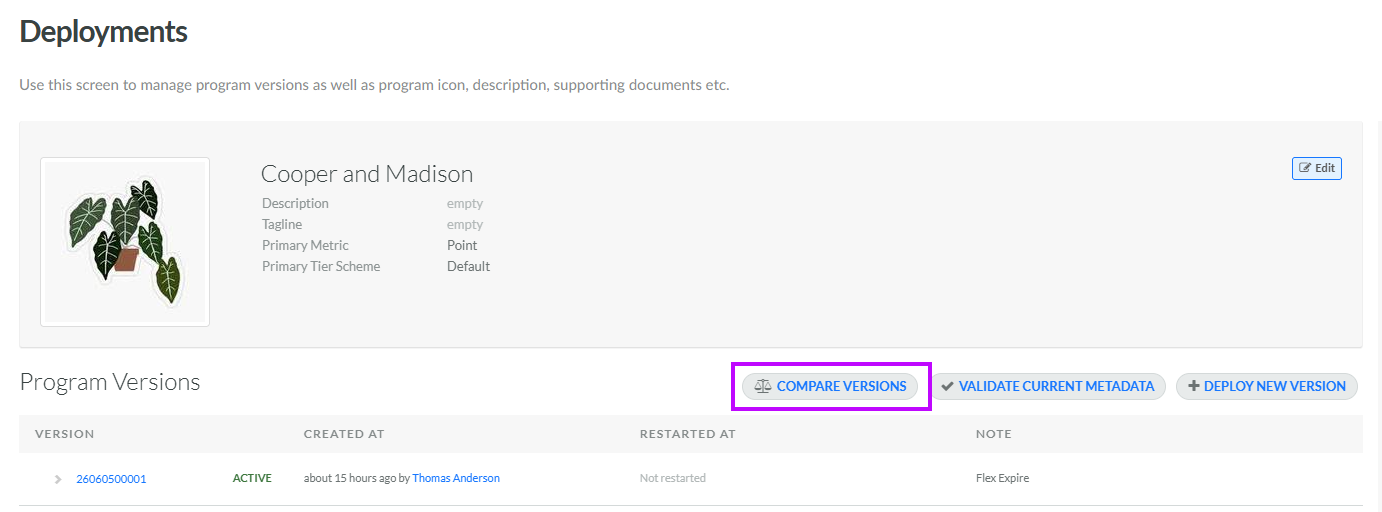
Select Program from the top navigation bar, then select Deployments from the side navigation menu. The Deployments screen is displayed.
-
Click Compare Versions. The Compare Programs pop-up window is displayed.
-
From the Older Version drop-down menu, select the first version to include in the comparison. This selection should be the older of the two versions being compared.
-
From the Newer Version drop-down menu, select the second version (or Current Undeployed State) to include in the comparison. This selection should be the newer of the two versions being compared.
-
Click Compare Versions. The platform compares the two selected versions and displays the results. Each asset type is separated into its own section, such as Earn Rules and Lookups. The platform highlights the differences between the two versions. If an asset type has no differences between the two versions, the platform displays "No Difference" in the section for that asset type.
Note: The Program section encompasses changes made to any of the following: Metrics, Member Attributes, Member Preferences, Member Functions, and Activity Types.
-
When finished, click Close.
