Download Import Job Logs
The platform generates several log files for every Import Definition job execution. To download the logs for a past job:
-
Select Admin from the top navigation bar, then select Integrations > Imports from the side navigation menu. The Imports screen is displayed.
-
Optionally, search for the desired Import Definition (see
-
Select the desired Import Definition, either by clicking its name, or by clicking the Edit icon within the Actions column. The Import Definition Details screen is displayed.
-
At the top of the Import Definition Details screen, click Job History.

-
Optionally, to filter the jobs displayed on the screen, select a job status from the Job Status drop-down menu: Pending, Queued, Inserting, Completed, or Failed. The default is: Any Status. Then click the Search button.
-
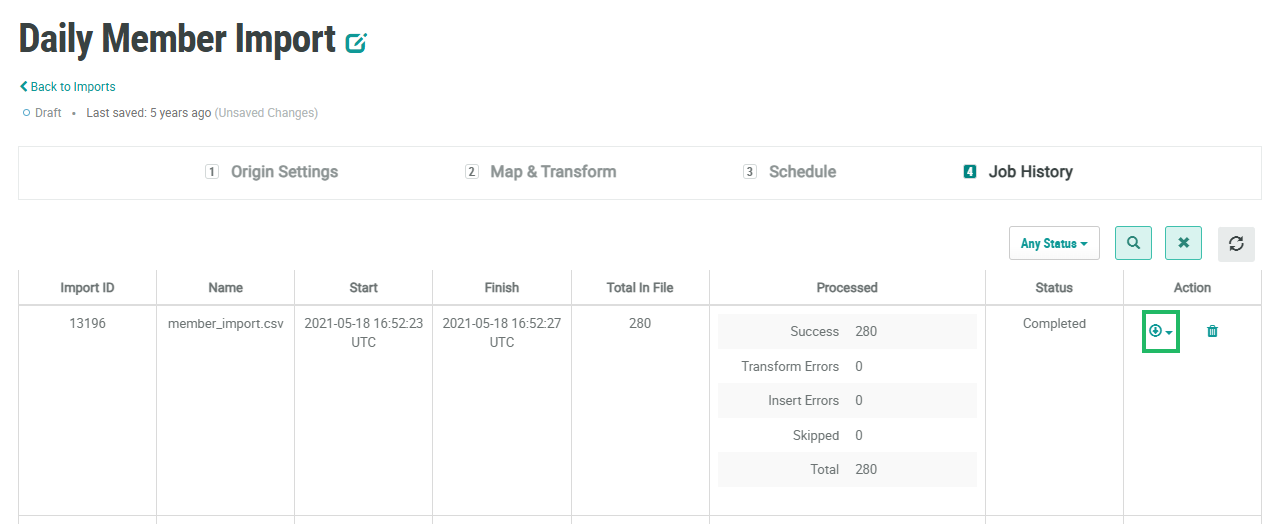
In the Action column next to the desired job, click the Download Files icon, then select the desired log file.
-
Failed Rows (Order imports only)
-
Transformation Errors
-
Skipped Records Log
-
Records with Errors
-
Deleted Members
-
Original File (Order imports only)
-
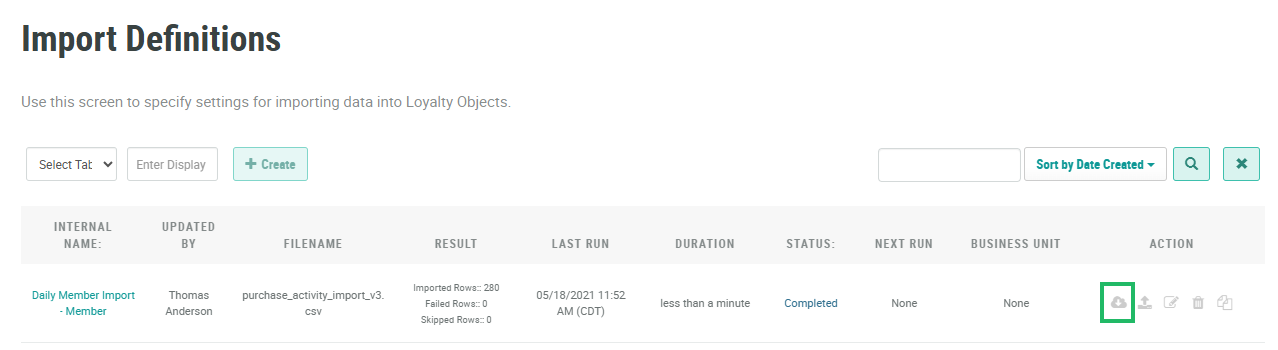
The Transformation Errors log file is also available from the Imports screen by clicking the Download icon in the Action column.