
View or Edit a Connection Profile
Connectors are used to integrate the Loyalty platform with other Zeta applications, and swith a wide range of third-party platforms. An integration with another platform is managed through a reusable asset called a Connection Profile.
To view or edit an existing Connection Profile:
-
Select Admin from the top navigation bar, then select Integrations > Connectors from the side navigation menu. The Connectors screen is displayed.
-
Click the tile for the desired Connector type. The Connection Profiles screen is displayed, showing all the existing Connection Profiles of the selected type.
-
For mParticle Connection Profiles only, select either the Outbound mParticle tab or the Inbound mParticle tab.
-
For HTTP API Connection Profiles only, select either the Connection Profiles tab or the Template tab.
-
Click the desired Connection Profile. The Connection Profile Details screen is displayed.
-
Within the header area of the Connection Profile Details screen, click the Edit icon. The Edit Connection Profile pop-up window is displayed and populated with the current configuration properties of this Connection Profile.
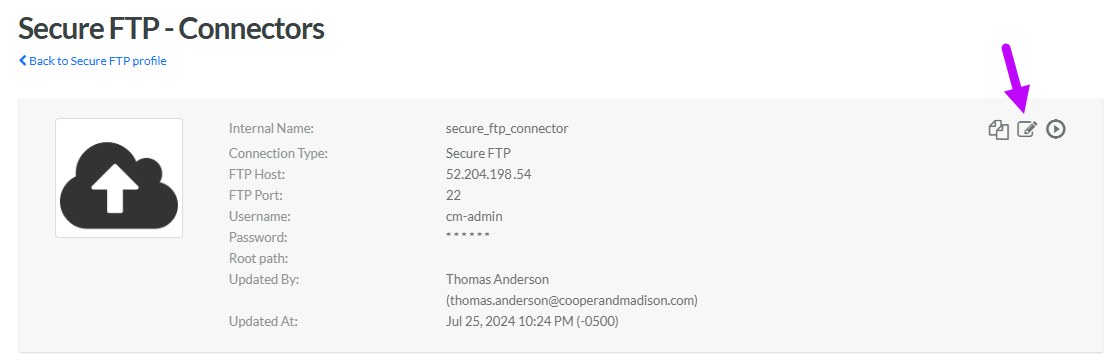
-
Make any necessary changes to the Connection Profile properties.
-
Click Save.
For more information on the specific properties available for a Connector type, see below.
| Connector Type |
|---|
 Amazon S3 Amazon S3
|
 Cheetah Digital Cheetah Digital
|
 Google Cloud Storage Google Cloud Storage
|
 HTTP API HTTP API
|
 Secure FTP Secure FTP
|
| Selligent
|
 Salesforce Marketing Cloud Salesforce Marketing Cloud
|
| Sparkfly
|
| Template Type |
 HTTP Template HTTP Template
|
