
Connection Profile Configuration - mParticle
mParticle Connection Profiles are used to integrate the Loyalty platform with the mParticle platform.
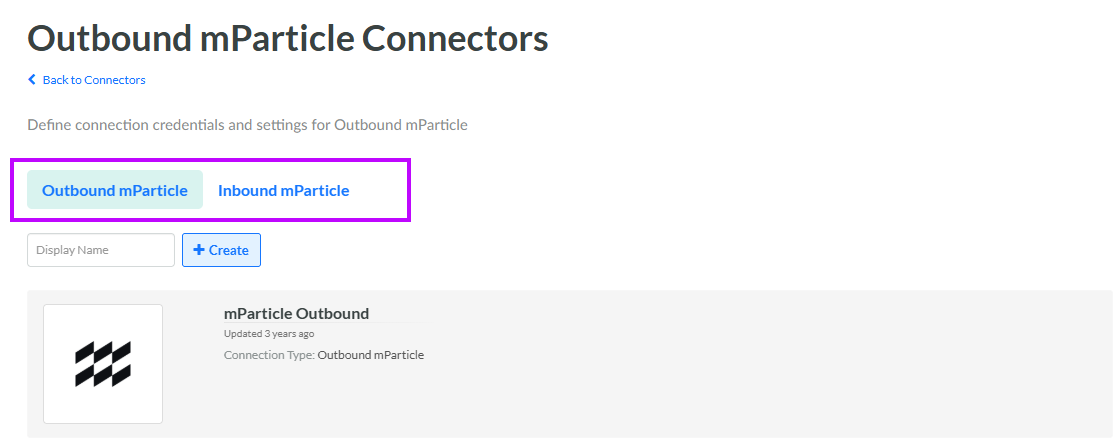
Unlike most of the other Connector types in Loyalty, the mParticle Connector supports separate Inbound and Outbound Connection Profiles. When you select the mParticle tile on the Connectors screen, the mParticle Connection Profile screen is displayed. Tabs at the top of the screen let you toggle between viewing Inbound or Outbound Connection Profiles.
Configure an Inbound Connection Profile
mParticle exports events and updates by streaming data to an HTTPS endpoint or to an AWS Lambda function. When an update occurs, a request is made with its contents. The Inbound Connection Profile supports new Member registrations and updates to Member Attributes. Since the data format is standardized in mParticle, marketers can map, transform, and store it within Loyalty as updated Member Attributes and Activities.
Note: A Loyalty client can have only one Inbound mParticle Connection Profile.
This Connection Profile type includes the following properties:
-
Label: Enter the display name of the Connection Profile.
-
Internal Name: Enter the internal system name of the Connection Profile. This field is uneditable by default. To edit the Internal Name, check Edit Internal Name. A confirmation dialog box is displayed; click Ok. Edit the Internal Name value.
-
Extra Settings: Enter the JSON mapping for inbound mParticle data. The following default JSON is generated when you initially create the Inbound mParticle Connection Profile).
{
    "user_profiles": {
          "lookup_by": "integration_id",
          "user_attributes": {
               "customer": "integration_id"
          }
        }
      }
Note the following guidelines for creating this JSON:
-
Mapping must be valid JSON.
-
JSON must have a user_profiles object.
-
The user_profiles object must have a lookup_by parameter. The lookup_by value should be the Loyalty Member Attribute by which the platform will search incoming Member Profiles to determine whether or not the Member already exists. Valid values for lookup_by are as follows:
-
Id
-
Card_id
-
Device_token
-
Email
-
Integration_id
-
Integration2_id
-
Integration3_id
-
Integration4_id
-
Integration5_id
-
Integration6_id
-
Integration7_id
-
Integration8_id
-
Integration9_id
-
Integration10_id
-
Integration11_id
-
Member_id
-
Mobile_phone
-
Username
-
User_token
-
-
The user_profiles object must contain a user_attributes object containing key / value pairs used to map mParticle user profile attributes to Loyalty Member Attributes. The “keys” are the mParticle attributes, and the “values” are the Loyalty Member Attributes.
-
The Member Attribute defined as the lookup_by parameter must be included within the user_attributes mapping.
-
Activity Sending can be enabled or disabled by adding the Boolean parameter activity in the user_profiles object. This parameter determines whether ingestion (the import and immediate use or storage) of such data should generate Activities and events within the Loyalty platform. Activity Sending is analogous to the Publish Activity feature on the Import Definition Details screen, in that you can choose to either publish or not publish the Member’s signup and update activity. If this parameter is not included in the Attribute mapping, the platform utilizes a default value of true (to allow Activity Sending).
Inbound Connector Setup in mParticle Console
In order to configure a connection in the mParticle application, you must first obtain an API key. Contact your Zeta Global service representative to start an mParticle API key generation request.
To setup the Inbound Connection Profile within mParticle:
-
Log into the mParticle application with your user name and password.
-
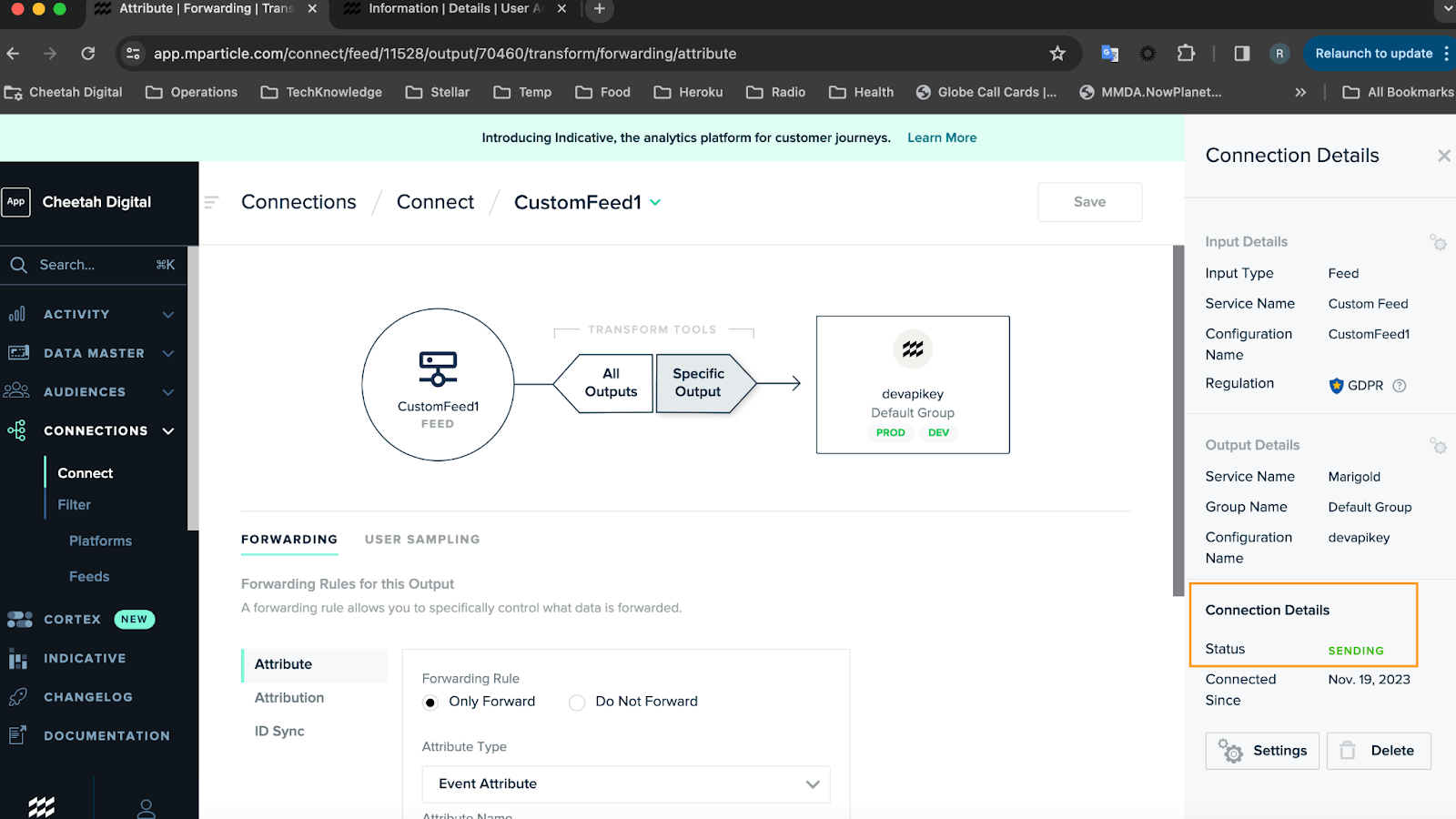
For Loyalty to receive data from mParticle, you must set up a connection as in the example below. The Inbound mParticle Connection Profile (pictured on the far right) should be configured as one of the outputs of the connection.
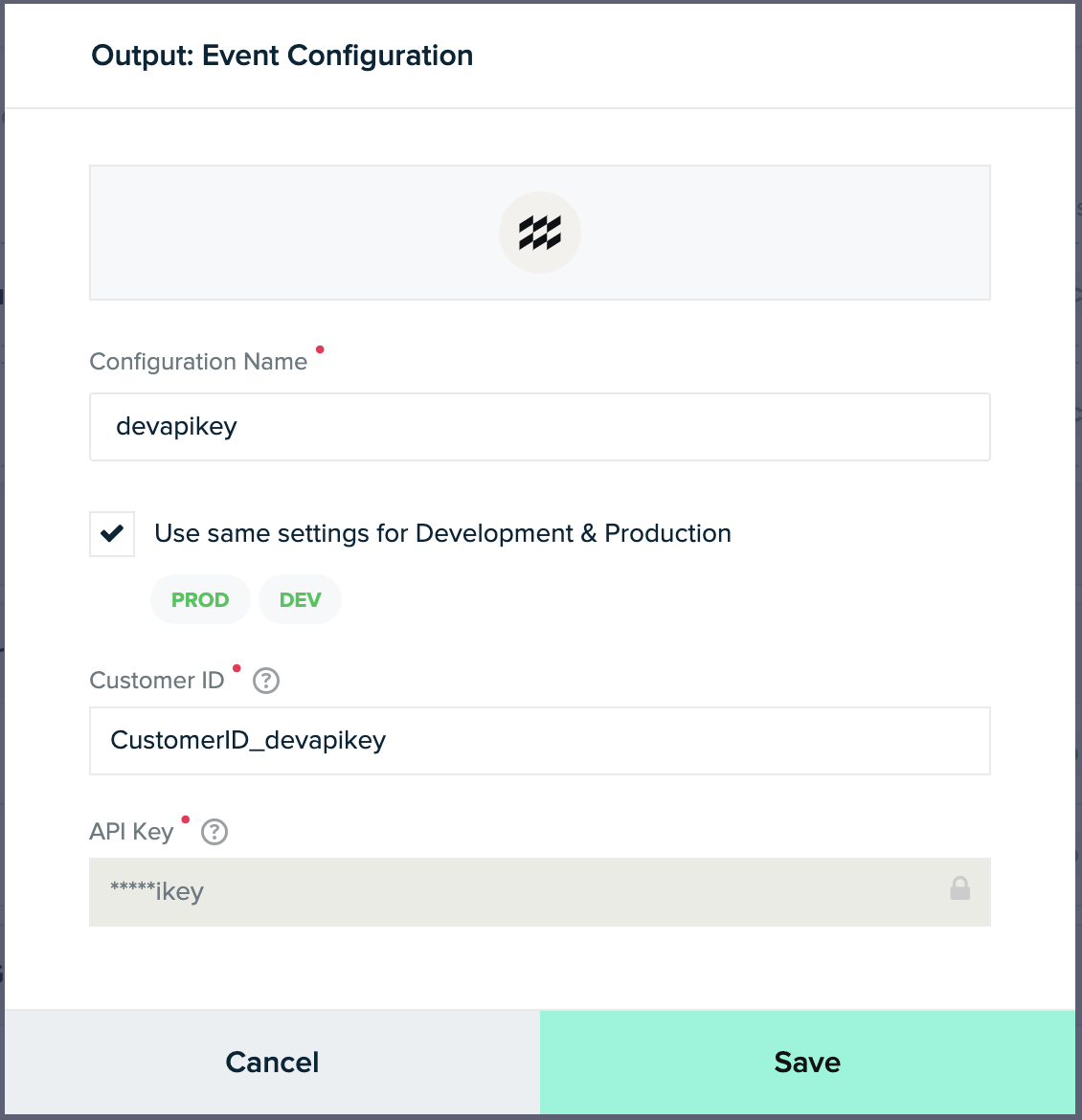
Below is an example configuration for a Loyalty Connector in mParticle. Enter your Configuration Name, your Customer ID, and the API Key that was provided by your Zeta Global team.
Configure an Outbound Connection Profile
This Connection Profile type includes the following properties:
-
Label: Enter the display name of the Connection Profile.
-
Internal Name: Enter the internal system name of the Connection Profile. This field is uneditable by default. To edit the Internal Name, check Edit Internal Name. A confirmation dialog box is displayed; click Ok. Edit the Internal Name value.
-
API Key: Enter the username for the mParticle user account.
-
API Secret: Enter the password for the mParticle user account.
