
Create a Gift Card Class
A Gift Card Class is used to define a shared set of attributes for Gift Cards that controls various properties of the Gift Card, such as a default starting balance or qualifying item restrictions.
The platform allows you to create a new Gift Card Class from scratch, or to copy an existing Gift Card Class to use as the basis for a new Gift Card Class.
Create a Gift Card Class
To create a Gift Card Class from scratch:
-
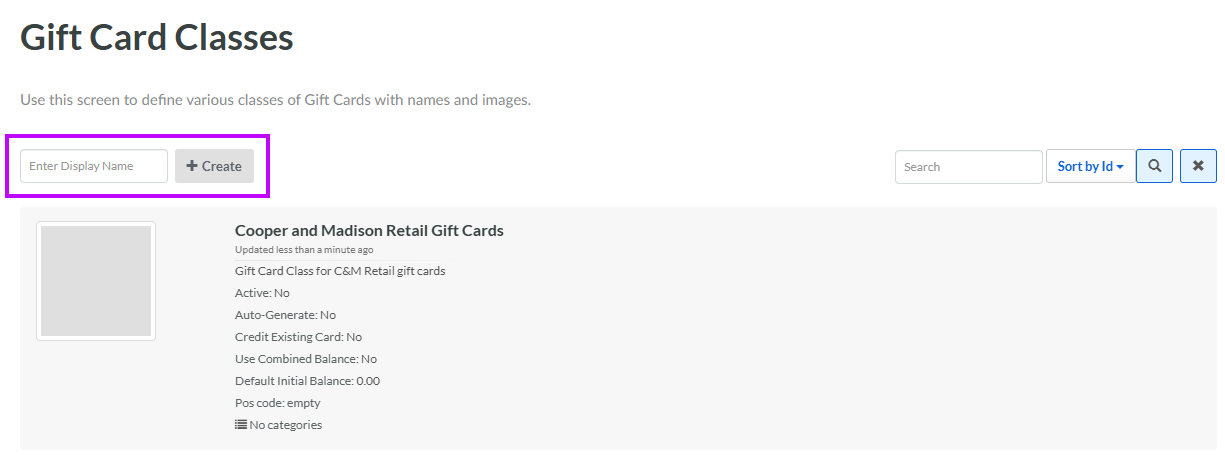
Select Transactions from the top navigation bar, then select Settings > Gift Card Classes from the side navigation menu. The Gift Card Classes screen is displayed.
-
In the Display Name field, enter the name of the new Gift Card Class.
-
Click Create. The Edit Gift Card Class pop-up window is displayed.
-
The Label field is populated with the value you entered above; optionally edit this value.
-
The Internal Name is automatically populated based on the Display Name value. This field is not editable by default. To edit the Internal Name, check Edit Internal Name. A confirmation dialog box is displayed; click Ok. Edit the Internal Name value.
-
Optionally, in the Description field, enter a description of this item.
-
The Integration ID field is not editable by default. To edit the Integration ID, check Edit Integration ID. A confirmation dialog box is displayed; click Ok. Enter the Integration ID value.
-
Optionally, from the Categories drop-down menu, select the desired Gift Card Class Category. Repeat this step as needed to assign the Gift Card Class to multiple Categories.
-
Click Save.
Once you have created the Gift Card Class, click it to view the Gift Card Class Details screen. See View a Gift Card Class for more information.
Copy a Gift Card Class
To copy an existing Gift Card Class:
-
Select Transactions from the top navigation bar, then select Settings > Gift Card Classes from the side navigation menu. The Gift Card Classes screen is displayed.
-
Search for and select the desired Gift Card Class (see Search for a Gift Card Class for more information on the available search options). The Gift Card Class Details screen is displayed, with the Definition tab selected.
-
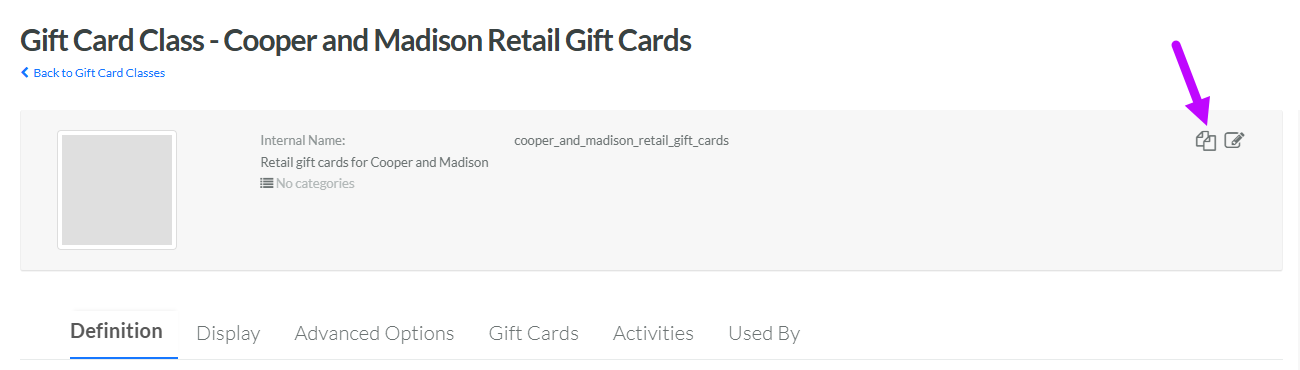
Within the header area of the screen, click the Copy icon.
-
The platform creates a copy of the Gift Card Class, and the Gift Card Class Details screen is displayed. The default name of the new Gift Card Class is the name of the base Gift Card Class followed by a counter, such as "(1)." See View a Gift Card Class for more information.
