
Delete a Gift Card Class Category
To keep your Loyalty instance uncluttered, the best practice recommendation is to delete unneeded or test Gift Card Class Categories. The deletion process is permanent and irrevocable; you can’t later restore a deleted Gift Card Class Category.
You don't need to remove the Gift Card Classes from the Gift Card Class Category prior to deleting the Category. Deleting the Gift Card Class Category has no impact on the Gift Card Classes currently assigned to the Category (the platform will simply remove the Category assignment from those Gift Card Classes).
To delete a Gift Card Class Category:
-
Select Transactions from the top navigation bar, then select Settings > Gift Card Class Categories from the side navigation menu. The Gift Card Class Categories screen is displayed.
-
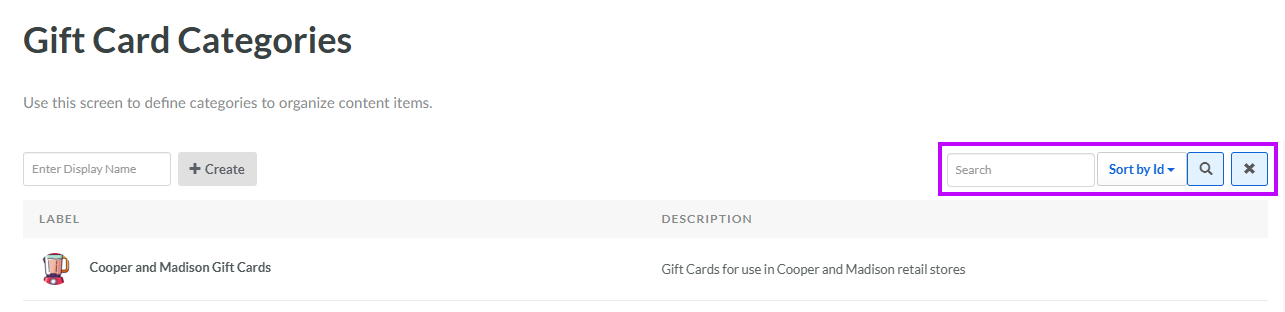
Optionally, enter a search string in the Search field. You can search for Gift Card Class Categories based on their Display Name or Internal Name. Click the Search icon. The screen is refreshed to show only the Gift Card Class Categories that meet your search criteria.
-
To sort the search results, select the desired sort order from the Sort By drop-down menu. The default sort order is by: Category ID.
-
Click the name of the desired Gift Card Class Category. The Edit Gift Card Class Category pop-up window is displayed.
-
Click Delete. A confirmation dialog box is displayed; click Confirm.
