
Create a Gift Card Class Category
To create a Gift Card Class Category:
-
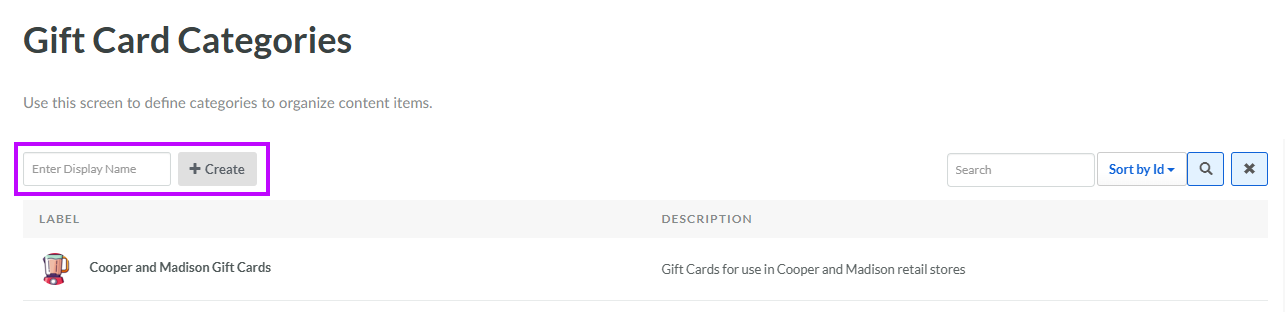
Select Transactions from the top navigation bar, then select Settings > Gift Card Class Categories from the side navigation menu. The Gift Card Class Categories screen is displayed.
-
In the Display Name field, enter a name for the new Gift Card Class Category.
-
Click Create. The Edit Gift Card Category pop-up window is displayed.
-
The Label field is populated with the value you entered above; optionally edit this value.
-
The Internal Name is automatically populated based on the Display Name value. This field is not editable by default. To edit the Internal Name, check Edit Internal Name. A confirmation dialog box is displayed; click Ok. Edit the Internal Name value.
-
Optionally, to assign a thumbnail image to this item, click Choose File. Browse to and select the desired image file, then click Open.
-
Optionally, in the Description field, enter a description of this item.
-
Click Save.
Add a Gift Card Class to a Gift Card Class Category
After creating the Gift Card Class Category, you can begin adding Gift Card Classes to it. However, you can't add Gift Card Classes to the Gift Card Class Category from the Gift Card Class Categories screen. Instead, you must navigate to the Gift Card Class Details screen, and add the desired Gift Card Classes one at a time to the Gift Card Class Category.
To add a Gift Card Class to a Gift Card Class Category:
-
Select Transactions from the top navigation bar, then select Settings > Gift Card Classes from the side navigation menu. The Gift Card Classes screen is displayed.
-
Search for and select the desired Gift Card Class (see Search for a Gift Card Class for more information on the available search options). The Gift Card Class Details screen is displayed, with the Definition tab selected.
-
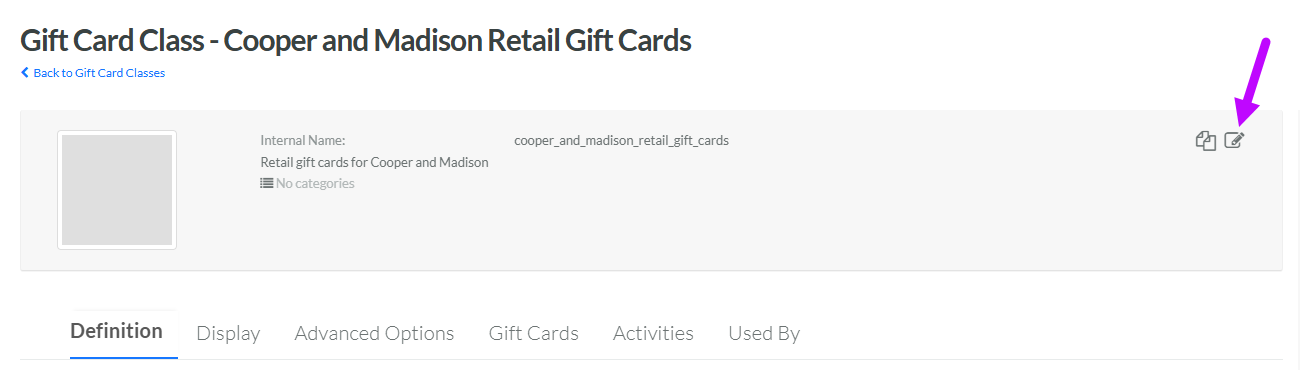
Within the header area of the screen, click the Edit icon. The Edit Gift Card Class pop-up window is displayed.
-
Optionally, from the Categories drop-down menu, select the desired Gift Card Class Category. Repeat this step as needed to assign the Gift Card Class to multiple Categories.
-
Click Save.
