
Download a Post Export
To download a previously-generated export file of Posts:
-
Select Communities from the top navigation bar, then select News Feed from the side navigation menu. The News Feeds screen is displayed.
-
Search for and select the desired News Feed (see Search for a News Feed for more information on the available search options). The News Feed Details screen is displayed, with the Posts tab displayed by default.
-
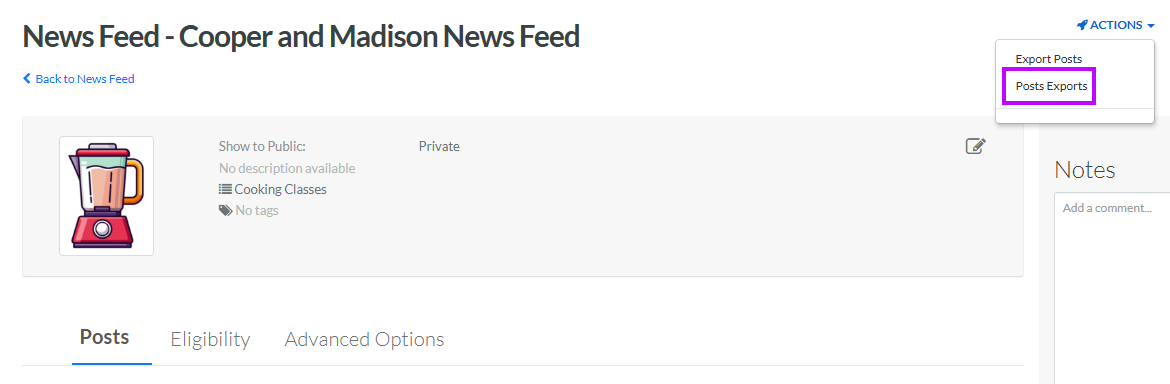
From the Actions drop-down menu, select Posts Exports. The Posts Export Definitions pop-up window is displayed and populated with a list of all existing Post Exports.
Note: The Date Created column indicates the current version of an export. Optionally, you may want to refresh an export prior to downloading it (see Manually Execute a Post Export for more information on this process).
-
From the Action column of the desired export, click the Download icon. The platform downloads the file to your local PC.
