
Edit Gallery Item Properties
The Gallery serves as a media repository for Member-supplied images and videos, as well as for files uploaded by marketers directly to the Gallery.
To view or edit the properties of a Gallery item:
-
Select Communities from the top navigation bar, then select Gallery from the side navigation menu. The Gallery screen is displayed.
-
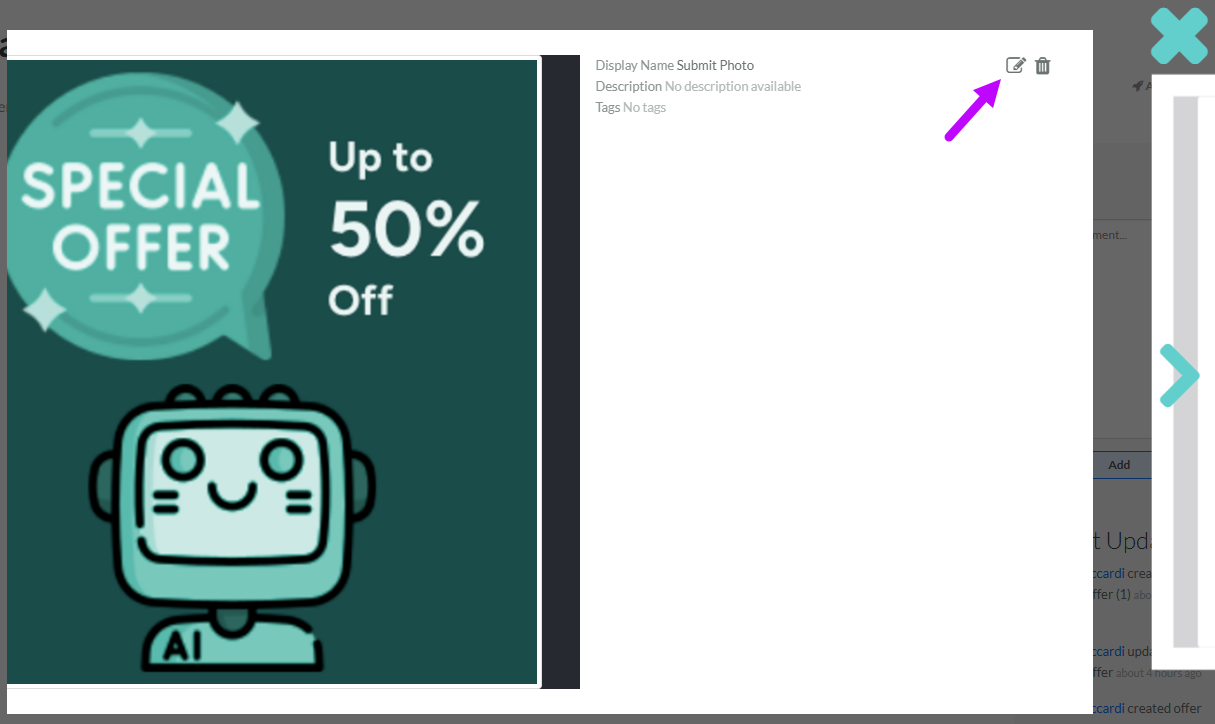
Search for and select the desired Gallery item (see Search for a Gallery Item for more information on the available search options). The Gallery Item Details pop-up window is displayed.
-
The item's Title, Description, and Tags are displayed. To edit these properties, click the Edit icon.
-
The Display Name field is populated with item's Title; optionally edit this value.
-
Optionally, in the Description field, enter a description of this item.
-
Tags are used to help organize objects within the platform. Gallery Items can be searched by Tag from the Gallery Items screen. To reuse an existing Tag, begin typing all or part of the Tag name, and select it. You can also type in a new Tag value.
-
Click Save.
-
To close the Gallery Item Details pop-up window, click the Close icon in the top-right corner of the window.
