
Target an Event
Events can be accessible to all of your Members, or they can be targeted to only certain Members. Targeting Events is managed through the use of Segments and Places.
Segments use logical conditions to define the criteria for inclusion. Before targeting the Event based on a Segment, you must first create and publish the Segment with the desired conditions. See Getting Started with Segments for more information.
Places allow you to define geographical places such as stores, restaurants, or kiosks. Before targeting the Event based on a Place, you must first create and publish the Place. See Getting Started with Places for more information.
Target an Event Using Segments
To target an Event using Segments:
-
Select Communities from the top navigation bar, then select Communities > Events from the side navigation menu. The Events screen is displayed. By default, List View is selected.
-
Search for and select the desired Event (see Search for an Event for more information on the available search options). The Event Details screen is displayed, with the Definition tab displayed by default.
-
Select the Eligibility tab.
-
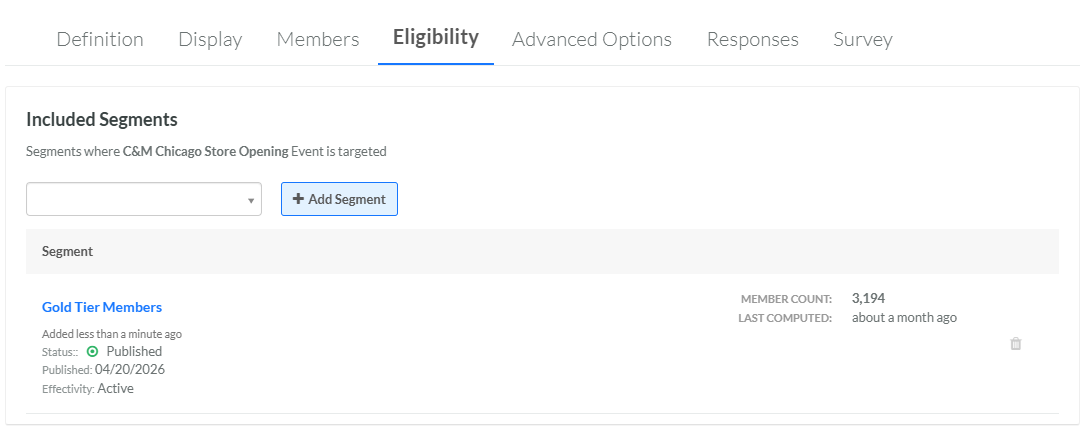
The Included Segments section is used to make the Event eligible only to Members in the selected Segment (or Segments). In this section, from the drop-down menu, select the desired Segment. Optionally you can type all or part of the Segment name to filter this menu.
-
Click Add Segment. The selected Segment is displayed within the Included Segments section.
-
Repeat the above steps as needed. If you add multiple Segments, a Member must be in only ONE of the selected Segments to be eligible for this Event. That is, multiple Included Segments are joined with an OR operator.
-
Optionally, to remove an Included Segment, click the Remove icon.
-
The Excluded Segments section is used to make the Event ineligible to Members in the selected Segment (or Segments). In this section, from the drop-down menu, select the desired Segment. Optionally you can type all or part of the Segment name to filter this menu.
-
Click Add Segment. The selected Segment is displayed within the Excluded Segments section. If you add both an Included Segment and an Excluded Segment to the Event, the Excluded Segment takes priority. Therefore, if a Member is selected by both the Included and the Excluded Segment, that Member will be ineligible for this Event.
-
Repeat the above steps as needed. If you add multiple Segments, a Member must be in only ONE of the selected Segments to be ineligible for this Event. That is, multiple Excluded Segments are joined with an OR operator.
-
Optionally, to remove an Excluded Segment, click the Remove icon.
Target an Event Using Places
To target an Event using Places:
-
Select Communities from the top navigation bar, then select Communities > Events from the side navigation menu. The Events screen is displayed. By default, List View is selected.
-
Search for and select the desired Event (see Search for an Event for more information on the available search options). The Event Details screen is displayed, with the Definition tab displayed by default.
-
Select the Eligibility tab.
-
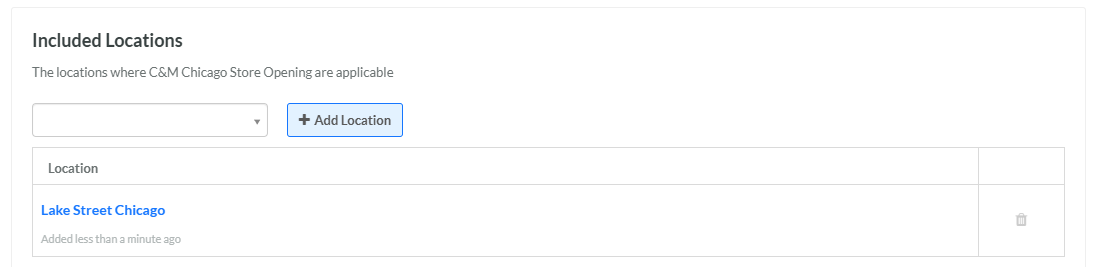
The Included Locations section is used to make the Event eligible only to specified Places. In this section, from the drop-down menu, select the desired Place. Optionally you can type all or part of the Place name to filter this menu.
-
Click Add Location. The selected Place is displayed within the Included Location section.
-
Repeat the above steps as needed. If you add multiple Places, the Places are joined with an OR operator.
-
Optionally, to remove an Included Place, click the Remove icon.
-
The Excluded Locations section is used to make the Event ineligible at a selected Place (or Places). In this section, from the drop-down menu, select the desired Place. Optionally you can type all or part of the Place name to filter this menu.
-
Click Add Location. The selected Place is displayed within the Excluded Locations section.
-
Repeat the above steps as needed. If you add multiple Places, the Places are joined with an OR operator.
-
Optionally, to remove an Excluded Location, click the Remove icon.
