
Search for an Event
The Events screen provides two different views of your existing Events: List View and Calendar View.
View Events in List View
List View provides a simple listing of the Events defined in your Loyalty account, similar to most other screens in the platform.
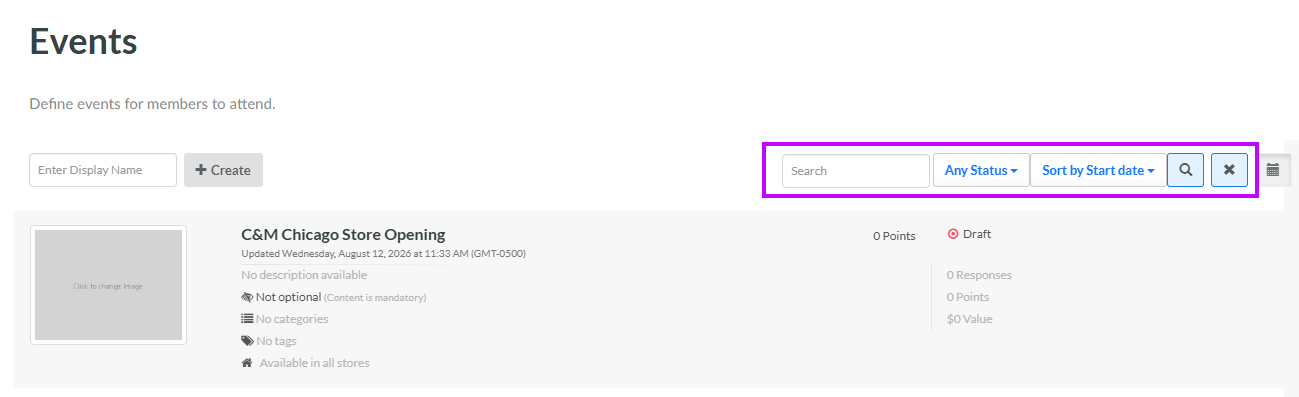
While in List View, the search feature on the Events screen allows you to search for a specified text string anywhere within the Event's display name, internal name, Event Category, or Tag. You can also filter the Events screen to show only Events with a specified status.
To search for an Event:
-
Select Communities from the top navigation bar, then select Communities > Events from the side navigation menu. The Events screen is displayed. By default, List View is selected.
-
Optionally, in the Search field, enter the desired text string.
-
Optionally, from the Status drop-down menu, select a status value: Archived, Draft, or Published. The default is Any Status.
-
Click the Search icon. The screen is refreshed to show only the Events that meet your search criteria. If you entered multiple search criteria, the Event must meet ALL criteria.
-
To sort the search results, select the desired sort order from the Sort By drop-down menu. The default sort order is by: Start Date.
-
Optionally, to remove all search criteria and revert to the default criteria, click the Clear icon.
Once you have found the desired Event, click it to view the Event Details screen. See View an Event for more information.
View Events in Calendar View
Calendar View provides a monthly, weekly, or daily snapshot of all the Events defined in your Loyalty account.
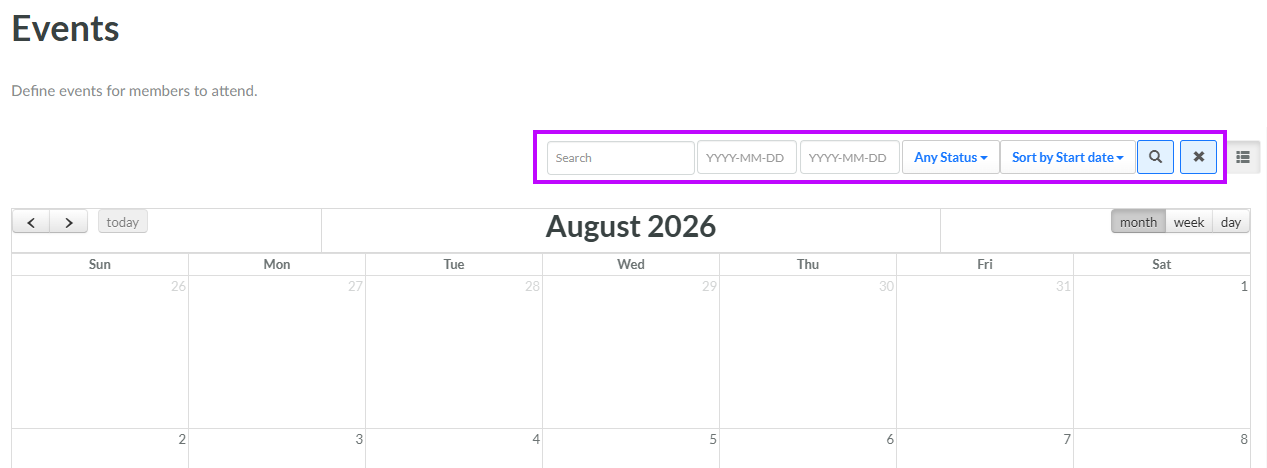
While in Calendar View, the search feature on the Events screen allows you to search for a specified text string anywhere within the Event's display name, internal name, Event Category, or Tag. You can also filter the Events screen to show only Events with a specified status, or Events with a date within a specific date range.
-
Select Communities from the top navigation bar, then select Communities > Events from the side navigation menu. The Events screen is displayed. By default, List View is selected.
-
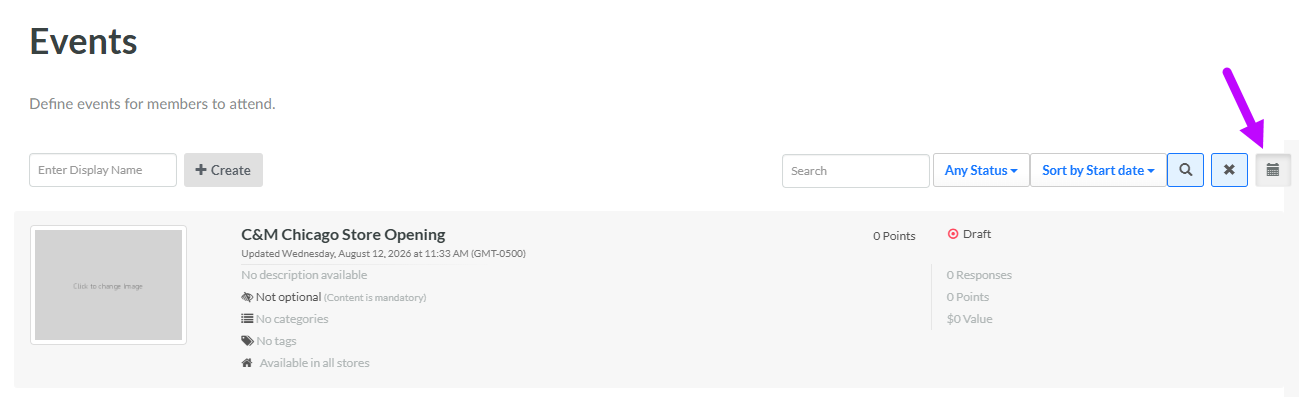
Click Calendar View. The platform defaults to a monthly view. For each day in the current month, the platform lists the Events scheduled for that day.
-
Optionally, click Week or Day to toggle to a weekly or daily view.
-
Optionally, use the left-arrow or right-arrow buttons to navigate to the previous or next month / week / day. Click Today to return to the current month / week / day.
-
Optionally, in the Search field, enter the desired text string.
-
Optionally, use the two date fields to define a range for the Event date.
-
Optionally, from the Status drop-down menu, select a status value: Archived, Draft, or Published. The default is Any Status.
-
Click the Search icon. The screen is refreshed to show only the Events that meet your search criteria. If you entered multiple search criteria, the Event must meet ALL criteria.
-
Optionally, to remove all search criteria and revert to the default criteria, click the Clear icon.
Once you have found the desired Event, click it within the calendar to view the Event Details screen. See View an Event for more information.
