Preview Event Content
The Display tab is used to define the content of this Event within your website or branded app. This tab displays the status of the content, and the date the content was created and last updated. For more information on defining Event content, please see
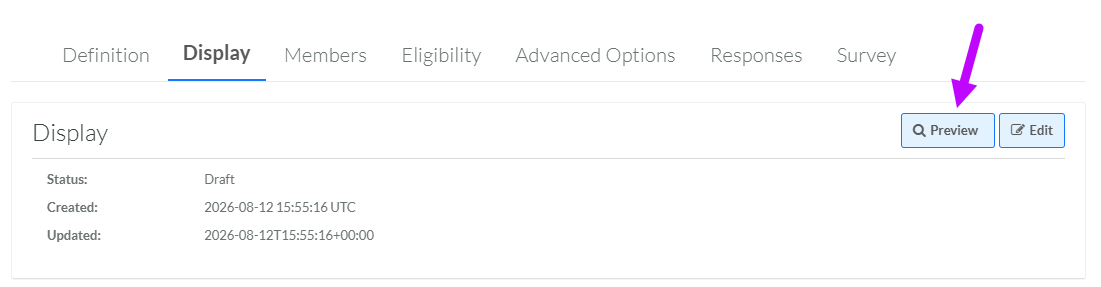
From the Display tab, you can also preview the Event content to verify that it's rendering correctly:
-
Select Communities from the top navigation bar, then select Communities > Events from the side navigation menu. The Events screen is displayed. By default, List View is selected.
-
Search for and select the desired Event (see Search for an Event for more information on the available search options). The Event Details screen is displayed, with the Definition tab displayed by default.
-
Select the Display tab.
-
Click Preview. The platform opens a new browser tab or window, and displays all the Layouts defined in this Event.