
Manually Execute an Event Export
Exports can be scheduled to execute at a specific date and time, or on a recurring basis. You can also manually execute an export.
To manually execute an export of Events:
-
Select Communities from the top navigation bar, then select Communities > Events from the side navigation menu. The Events screen is displayed. By default, List View is selected.
-
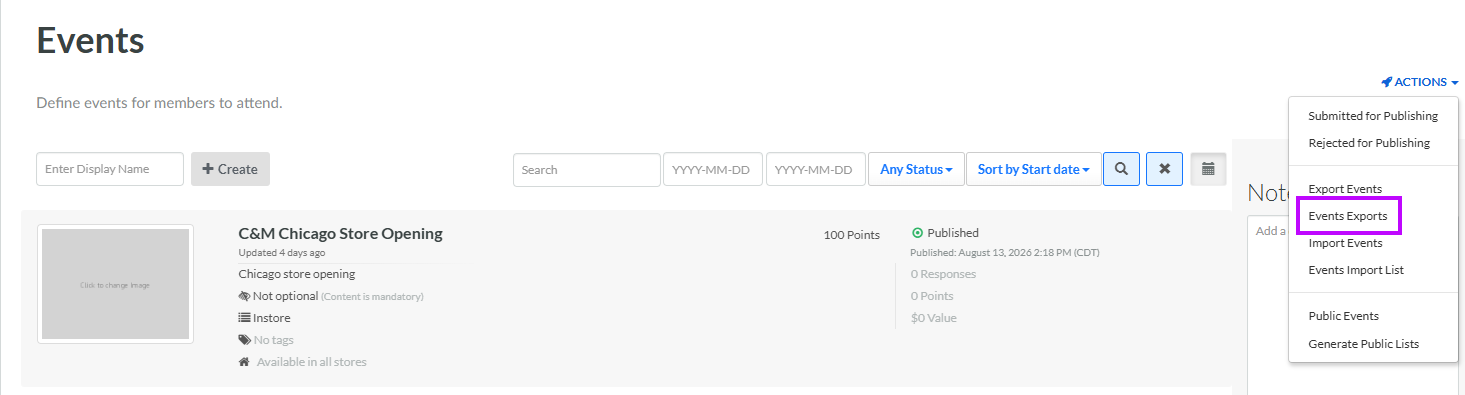
From the Actions drop-down menu, select Events Exports. The Events Export Definitions pop-up window is displayed and populated with a list of all existing Event Exports.
-
From the Action column of the desired export, click the Execute icon. A confirmation dialog box is displayed; click Confirm.
-
A success message is displayed. When the export is complete, you can download it (see Download an Event Export for more information).
