
Download an Event Export
To download a previously-generated export file of Events:
-
Select Communities from the top navigation bar, then select Communities > Events from the side navigation menu. The Events screen is displayed. By default, List View is selected.
-
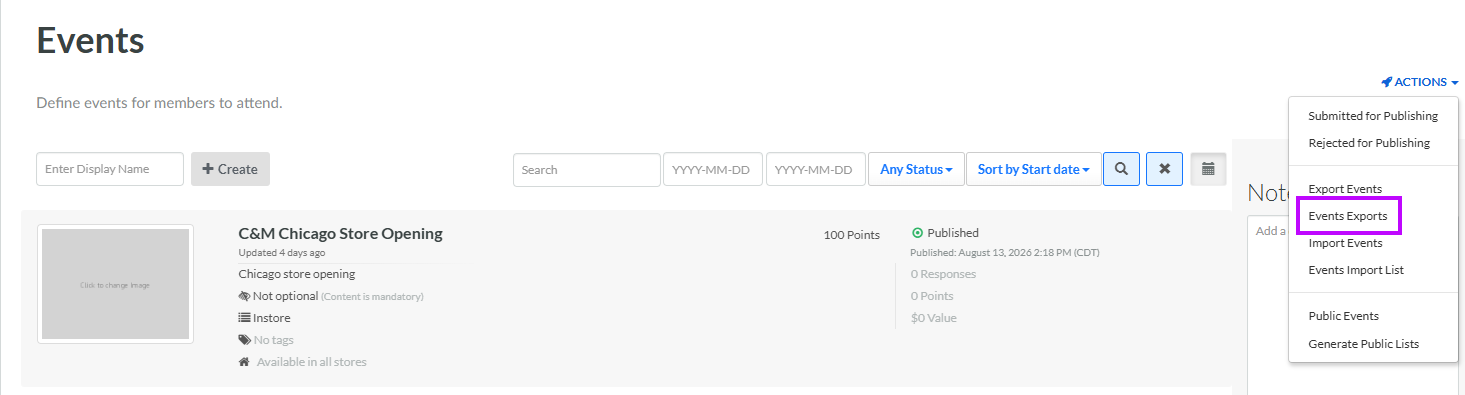
From the Actions drop-down menu, select Events Exports. The Events Export Definitions pop-up window is displayed and populated with a list of all existing Event Exports.
Note: The Date Created column indicates the current version of an export. Optionally, you may want to refresh an export prior to downloading it (see Manually Execute an Event Export for more information on this process).
-
From the Action column of the desired export, click the Download icon. The platform downloads the file to your local PC.
