
Assign an Individual to an Event
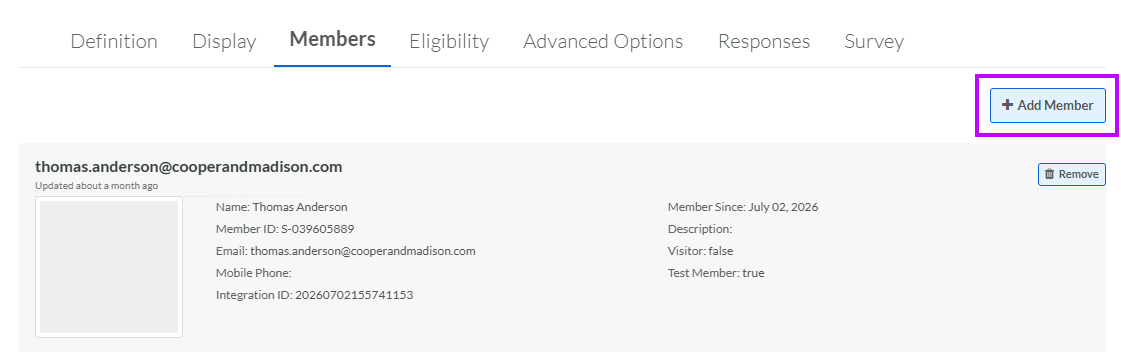
The Members tab can be used to associate individuals to the Event, such as hosts, presenters, or vendors. These individuals aren't customers that you intend to market to, but you might still want to capture their information as being related to the Event. However, note that to associate these individuals to the Event, they must exist within your Loyalty database as Member Profiles.
To assign an individual to an Event:
-
Select Communities from the top navigation bar, then select Communities > Events from the side navigation menu. The Events screen is displayed. By default, List View is selected.
-
Search for and select the desired Event (see Search for an Event for more information on the available search options). The Event Details screen is displayed, with the Definition tab displayed by default.
-
Select the Members tab.
-
Click Add Member. The Add Host pop-up window is displayed.
-
In the Member field, enter at least three characters of the individual's name, then select the desired individual from the search results.
-
Click Save.
If you need to remove an individual from this Event, click Remove next to their name.
