
Assign a Survey to an Event
The Loyalty platform allows you to assign an existing Multi-Question Survey type Challenge to an Event. This survey can then be presented to Members who attended the Event, to solicit their feedback.
For more information on Multi-Question Survey Challenges, see Configure a Challenge - Multi-Question Survey.
To assign a survey to an Event:
-
Select Communities from the top navigation bar, then select Communities > Events from the side navigation menu. The Events screen is displayed. By default, List View is selected.
-
Search for and select the desired Event (see Search for an Event for more information on the available search options). The Event Details screen is displayed, with the Definition tab displayed by default.
-
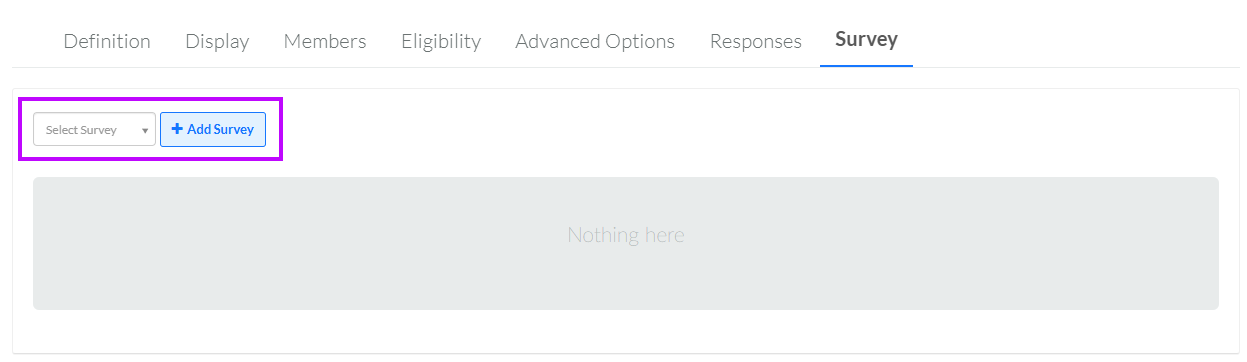
Select the Survey tab.
-
Click into the Select Survey field, and enter at least two characters of the Challenge name. From the search results, select the desired Challenge.
-
Click Add Survey.
To view additional details about the survey, click its name to navigate to the Challenge Details screen. See View a Challenge for more information.
An Event can have only one survey assigned to it. To remove a survey, click Remove.
