Add a KPI to a Query
The Loyalty platform empowers marketers to access their Member transactional data for analytical insights. Marketers can access and extract data using Analytic Queries that can be configured into customizable Query Dashboards comprising one or more charts, graphs, and Key Performance Indicators (KPIs).
In most cases, when using an Analytic Query to populate a Query Dashboard, the Analytic Query must contain at least one KPI. KPIs are calculated, single attributes that are stored for the purpose of delivering summary analytics. Loyalty supports Member KPIs and Program KPIs. Examples of Member KPIs include "Member Profitability Index," "Member Loyalty Index," and "Member Lifetime Value." Examples of Program KPIs include "New Member Count," "Active Member Count," "Total Members," "Total Spend," and "Activity Per Member."
In order to add a KPI to a Query, the Query must use a SELECT statement to retrieve data from one or more database tables or views.
Note: The Analytic KPIs screen lists all KPIs defined across all Queries. See View Analytics KPIs for more information.
To add a KPI to a Query:
-
Select Analytics from the top navigation bar, then select Settings > Queries from the side navigation menu. The Analytics Queries screen is displayed.
-
Optionally, search for and select the desired Query (see
-
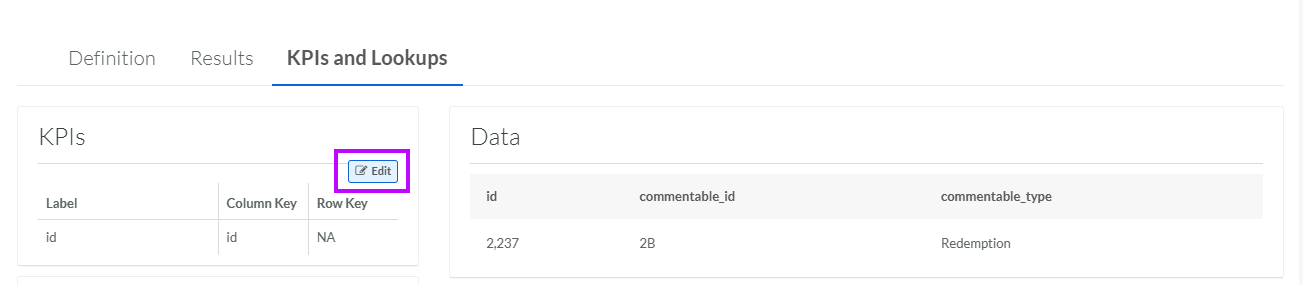
Select the KPIs and Lookups tab.
-
Within the KPIs section, click Edit. The Edit Bigdata Query pop-up window is displayed.
-
Click Add KPI. The platform adds a blank row for defining the KPI.
-
From the Column Key drop-down menu, selected the desired column.
-
If applicable, from the Row Key drop-down menu, selected the desired row.
-
Repeat the above steps to define additional KPIs. Optionally, to delete a KPI, click the Delete icon next to it.
-
Click Save.