View Analytics KPIs
In most cases, when using an Analytic Query to populate a Query Dashboard, the Analytic Query must contain at least one KPI. KPIs are calculated, single attributes that are stored for the purpose of delivering summary analytics.
The Analytics KPIs screen displays all KPIs that have been defined across all Analytic Queries in your account. For more information on how to add a KPI to a Query, see Add a KPI to a Query.
From this screen, you can search for the desired KPI, then easily navigate to the Query in which its used. The search feature on the Analytics KPIs screen allows you to search for a specified text string anywhere within a KPI's name, or within a Query's Display Name or Internal Name.
To search for an Analytic KPI:
-
Select Analytics from the top navigation bar, then select Settings > KPIs from the side navigation menu. The Analytics KPIs screen is displayed and populated with all the KPIs defined in your Loyalty account.
-
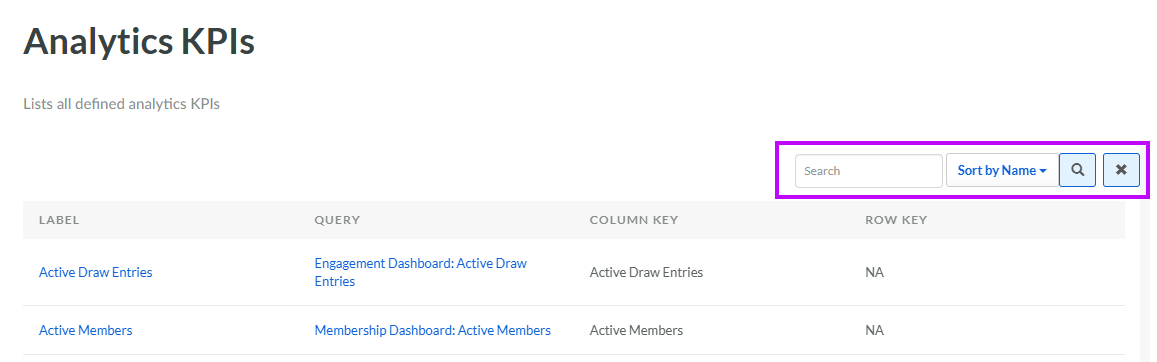
Optionally, in the Search field, enter the desired text string.
-
Click the Search icon. The screen is refreshed to show only the KPIs that meet your search criteria. If you entered multiple search criteria, the KPI must meet ALL criteria.
-
To sort the search results, select the desired sort order from the Sort By drop-down menu. The default sort order is by: KPI Name.
-
Optionally, to remove all search criteria and revert to the default criteria, click the Clear icon.
For each KPI, the screen displays its name, the name of the Query in which the KPI is used, and its column key and row key (if applicable).
For additional details, you can navigate directly to the Query Details screen. See View a Query for more information.
-
Click the name of the KPI within the Label column to navigate to the KPIs and Lookups tab of the Query Details screen.
-
Click the name of the Query within the Query column to navigate to the Definition tab of the Query Details screen.