Set an Analytics Dashboard Alert Notification
Within an Analytics Dashboard, you can define alerts that will trigger an automated notification if the value in a Number with Evolution type Item surpasses a set threshold.
To set an automated alert:
-
Navigate to and select the desired Analytics Dashboard through either of the following methods:
-
Select Analytics from the top navigation bar, then select the desired Analytics Dashboard from the side navigation menu. The Internal Report that has been linked to this Analytics Dashboard is displayed.
-
Select Analytics from the top navigation bar, then select Settings > Dashboards from the side navigation menu. The Dashboards screen is displayed and populated with all the standard and custom Dashboards defined in your Loyalty account. Click the name of the desired Analytics Dashboard. The Internal Report that has been linked to this Analytics Dashboard is displayed.
-
-
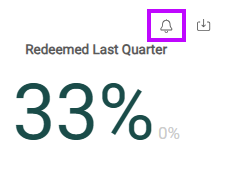
Hover your mouse over the desired Number with Evolution type Item. The Alert icon appears in the top-right corner of the tile.
-
Click the Alert icon. The Add Alert pop-up window is displayed.
-
Enter a name for the new alert.
-
The Trigger section allows you to define the alert threshold by means of a logical condition. Typically this condition comprises an aggregation (count, sum, etc.), the desired metric (Member ID, Order Count, etc.), a mathematical relationship (equals, less than, etc.), and a value (100, 20, etc.). Using the options in this section, define the alert threshold.
-
The Category section may be displayed depending on the selected column display in the Item. Optionally, use this section to define a time period.
-
The Filter section allows you to further refine the alert threshold by establishing a logical condition that limits what data is used to calculate the threshold. Click Add New Filter, then define the filter by selecting a column, a mathematical relationship, and a value. Repeat this step as needed to define additional filters.
-
Optionally to delete a group or filter, click the Delete icon next to it.
-
Click Next.
-
In the Frequency section, determine how often the platform should evaluate the alert threshold. Enter a value and a frequency, such as “1 day” to check every day, for example.
-
In the Channels section, select the means by which you want to receive the alert notification: Email, Slack, SMS, or Webhook.
-
Click Create.