Delete an Analytics Dashboard Export Job
When exporting an Analytics Dashboard or Dashboard Item using the advanced export method, the platform optionally allows you to define a recurring schedule. The platform saves that schedule as a Dashboard Export Job.
To delete an existing Dashboard Export Job:
-
Navigate to and select the desired Analytics Dashboard through either of the following methods:
-
Select Analytics from the top navigation bar, then select the desired Analytics Dashboard from the side navigation menu. The Internal Report that has been linked to this Analytics Dashboard is displayed.
-
Select Analytics from the top navigation bar, then select Settings > Dashboards from the side navigation menu. The Dashboards screen is displayed and populated with all the standard and custom Dashboards defined in your Loyalty account. Click the name of the desired Analytics Dashboard. The Internal Report that has been linked to this Analytics Dashboard is displayed.
-
-
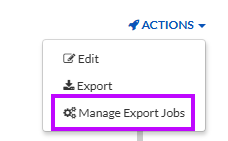
From the Actions menu in the top-right corner of the Dashboard, select Manage Export Jobs. The Export Dashboard pop-up window is displayed. This window displays the recipients and schedule details of every recurring export job defined for this Dashboard.
-
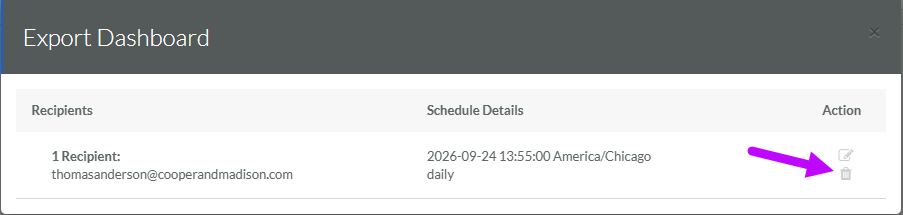
In the Action column of the desired export job, click the Delete icon. A confirmation dialog box is displayed; click Confirm.
-
A success message is displayed; click Close.