Create a Analytics Dashboard
Loyalty platform users with the proper Role permissions can build custom Analytics Dashboards using the platform's built-in reporting tool.
An Analytics Dashboard comprises the following two separate assets that must be created separately within the platform, and then linked together:
-
Internal Report: The Internal Report contains the actual content of the report, such as the graphs, charts, Key Performance Indicators, filters, and so forth. For more information, see Create an Internal Report.
-
Analytics Dashboard: The Analytics Dashboard is a Loyalty asset that contains the reference metadata needed by the platform, such as the display name, internal name, description, and so forth. When you select an Analytics Dashboard to view, the platform renders the Internal Report that has been linked to it.
When you create an Analytics Dashboard as described below, the platform will prompt you to select an Internal Report to link to the Analytics Dashboard. Therefore, the best practice recommendation is to create the Internal Report first, before you create the Analytics Dashboard.
To create an Analytics Dashboard:
-
Select Analytics from the top navigation bar, then select Settings > Dashboards from the side navigation menu. The Dashboards screen is displayed and populated with all the standard and custom Dashboards defined in your Loyalty account.
-
In the Display Name field, enter the name of the new Dashboard.
-
Click Add. The platform adds the new Dashboard to the Dashboards screen.
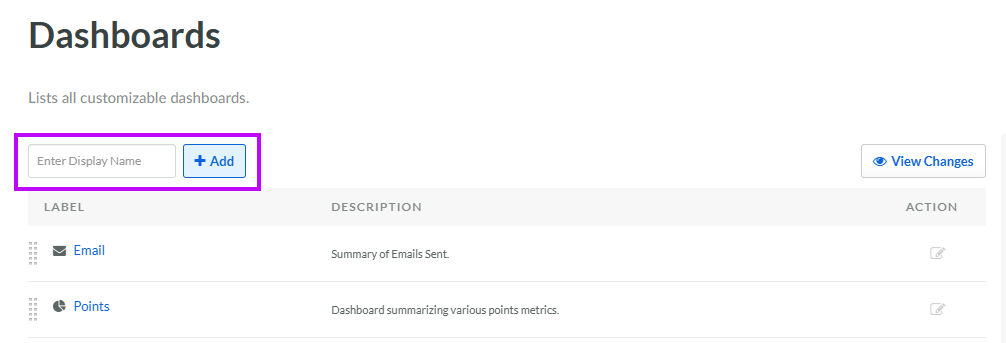
-
By default, the new Dashboard is a Query Dashboard. To change a Query Dashboard to an Analytics Dashboard, click the Edit icon next to it. The Edit Dashboard pop-up window is displayed.
-
From the Type drop-down menu, select Analytics Dashboard.
-
From the Dashboard ID drop-down menu, select the desired Internal Report to link to this Analytics Dashboard.
-
Click Save.
Note: The Type and Dashboard ID are the minimum required fields to change the Dashboard from a Query Dashboard to an Analytics Dashboard. For more information on the other Analytics Dashboard properties, see Edit Analytics Dashboard Properties.
-
By default, the new Dashboard is added to the very bottom of the Dashboards screen. Optionally, you can rearrange the sequence of Dashboards. Click-and-hold on the "handle" next to the Dashboard, then drag-and-drop the Dashboard into its desired new position. Click View Changes to apply the changes and refresh the screen.