The LiveSocial element lets you embed the feed from your social networks directly in your email campaigns. It’s a great way to gain new followers while building brand awareness and trust with each email you send. Read on for our LiveSocial best practices to make sure your social feeds stand out and have maximum impact.
Social proof your emails
Consumers are more likely to buy from brands they trust. So, if you are promoting a particular product or service, a best practice is to pull in specific User Generated content from your feed relating to these products. This could be in the form of a Curalate or Olapic integration, or even displaying reviews for a particular product or service from Bazaarvoice or PowerReviews.
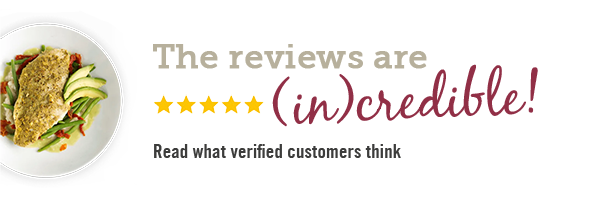
Get consumers to engage with your brand
Encourage participation from your audience or entries to a competition by asking your followers to share user generated content and tag your social media channel. Don’t forget that on Instagram you also have the option to set a hashtag, so you can automatically pull these posts into the email to create a fun and engaging brand experience.
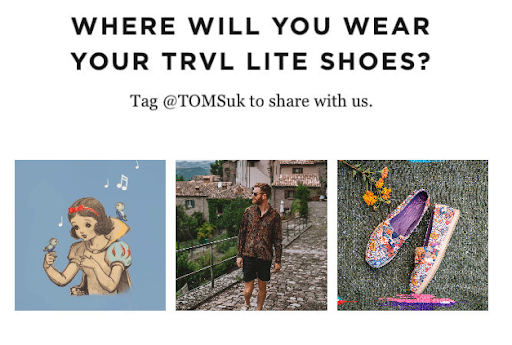
Always call out the social media channel
When including social media posts, it’s best practice to also include a heading that calls out which particular channel they belong to. This heading can be added in your email communication or even be part of the CSS appearance applied to the posts. For example, “Check out our latest Instagram posts” makes it explicitly clear to the user which channel you are promoting and you can also link them directly to your page, making sure you stay top of mind when they next visit that channel.
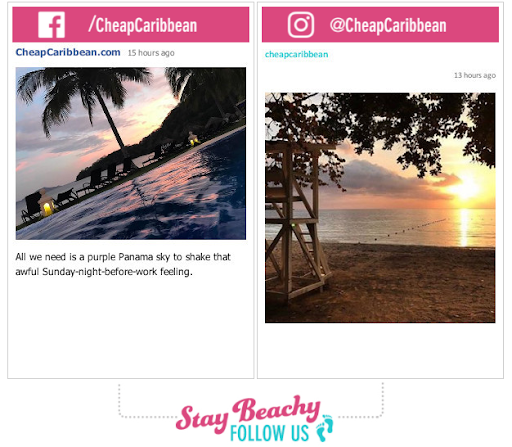
Control what content gets displayed
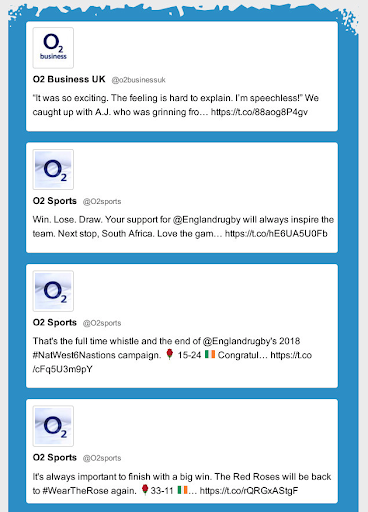
If you want to adjust the social content that gets displayed in your emails, you can configure your LiveSocial campaign to only display specific social content, or use it to repost compelling user-generated (UG) content to your channel. For example, Instagram gives you the option to display select posts by filtering based on the hashtag, and applying this in your own posts as well as user generated posts.
Notes for Instagram:
When you use a hashtag for content filtering, there are options for how posts are displayed:
-
Enable Include posts from other users: Liveclicker searches Instagram for public posts from other users that match the hashtag. Posts from other users may only appear if they were published within 24 hours of the email being opened, due to Meta API limitations.
-
Disable Include posts from other users: Liveclicker searches only posts from the connected Instagram account. In this mode, hashtag matching is exact. For example, #about will match #about, but will not match about or #aboutme.
There are a few things to consider with how posts are displayed:
-
Liveclicker checks up to the most recent 180 posts from the connected account before filtering by hashtag. Collaboration posts are not included.
-
If no matching posts are found, no results will be displayed in the preview, and the fallback image will be shown in the email.